
Email authentication uses SPF, DKIM and DMARC records to show receiving providers that your messages really come from your domain. Check your existing records, list every service that sends email for you, prepare SPF and DMARC with a generator, set up DKIM in each sending platform, then publish the records in your DNS and test real messages.
Why are your business emails landing in spam when you have written something your customers actually need?
The subject line might be clear. The offer might be relevant. But before someone reads your message, their email provider checks whether it can trust the sender.
That is where email authentication matters.
To get started, check your domain's existing records, identify every service sending emails for you, configure the missing settings and test actual messages after publishing.
Here is how to work through it using Anantya's free tools.
What Are SPF, DKIM and DMARC?
These three methods help receiving servers check messages claiming to come from your domain.
| Method | What it does |
|---|---|
| SPF | Lists the servers permitted to send for the domain used in an email's technical return address. |
| DKIM | Adds a digital signature so receivers can check the signing domain and whether signed content changed. |
| DMARC | Connects authentication to the visible From address and publishes a policy for messages that fail. |
For DMARC to pass, either SPF or DKIM must pass with an authenticated domain that matches, or appropriately aligns with, the domain readers see in the From address.
Think of them as checks that help establish who is sending the message.
Why Is Email Authentication Important for Email Marketing?
Your business might send newsletters, appointment reminders, quotations and automated follow-ups through different platforms.
Each sending service needs the correct configuration.
Authentication helps receiving providers assess those messages and can reduce the risk of legitimate email being rejected or marked as spam. An enforced DMARC policy also helps protect against unauthorized use of your domain.
However, email deliverability also depends on reputation, recipient consent, complaints and message quality. Correct records cannot guarantee inbox placement.
Step 1: Check Your Existing Email Setup
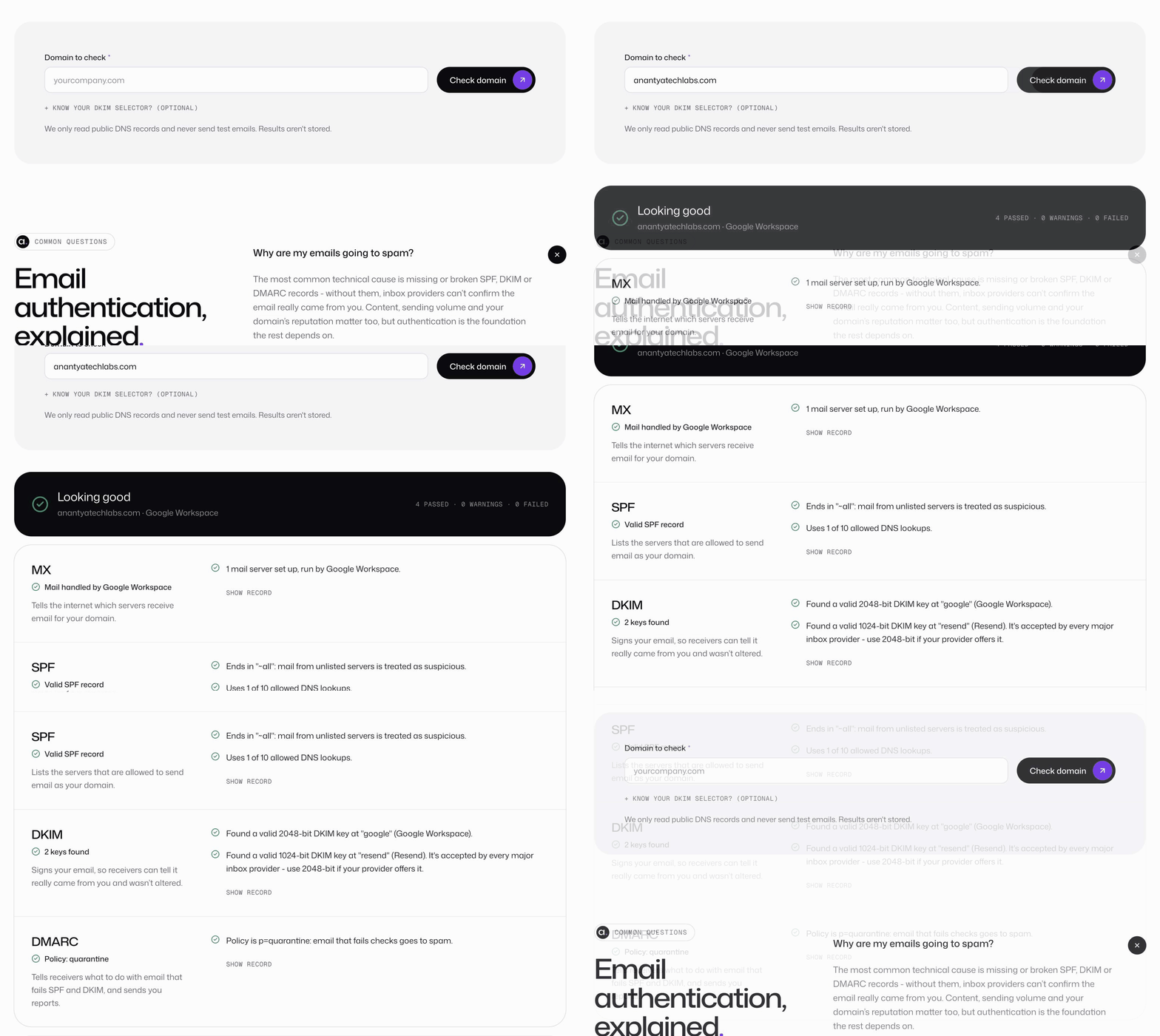
Open Anantya's free email domain checker and enter your domain, such as example.com.
Use the domain associated with your business email address.
The tool reads public records. It does not send test emails or require access to your inbox.
Review the findings before changing anything:
- MX record directs incoming email; it does not authenticate outgoing messages.
- SPF identifies authorized sending infrastructure.
- DKIM requires a lookup using the correct selector.
- DMARC publishes your policy and optional reporting destination.
If DKIM is not found, check the selector in your email provider's settings. The tool checks common selectors, but your provider may use a different one.
A missing lookup result alone does not prove DKIM is disabled.
Step 2: Identify Everything Sending Email for You
Before generating records, make a short list of your sending services.
Include your business mailbox, newsletter platform, CRM, helpdesk and any service sending website notifications.
For example, a company might use Google Workspace for conversations and a separate platform for newsletters. Both need attention.
Follow each provider's domain-authentication instructions. Some services use their own return-path domain, so their SPF setup may differ from what you expect.
This list helps you avoid fixing one sender while disrupting another.
Step 3: Prepare Your SPF and DMARC Records
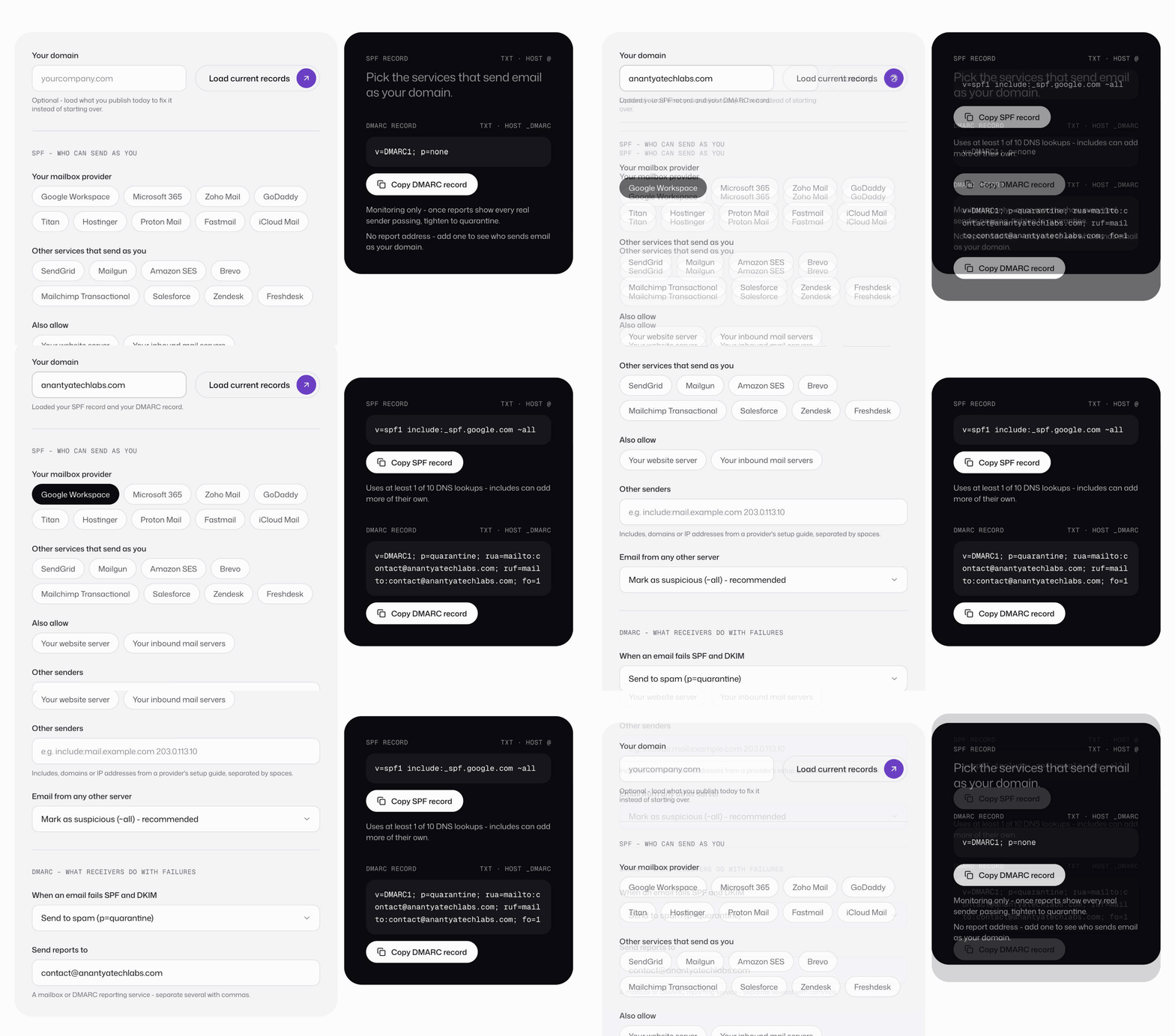
Open Anantya's generator. You can enter your domain and load existing records before making changes.
Prepare SPF
Use the SPF record generator to select your mailbox provider and relevant sending services.
For additional senders, use the values supplied in their setup documentation.
Keep one SPF record at each relevant domain or subdomain. If one already exists, update it carefully rather than adding a second.
SPF has a limit of ten DNS-querying terms during evaluation, including nested lookups. Adding unnecessary services can cause validation errors.
Prepare DMARC
Use the DMARC record generator on the same page to choose a policy and reporting address.
The available policies are:
p=none: requests monitoring without DMARC-based quarantine or rejection.p=quarantine: asks receivers to treat failing messages as suspicious.p=reject: asks receivers to reject failing messages.
Starting with monitoring lets you identify legitimate senders that need fixing. Add a reporting mailbox or service you can review, then strengthen the policy once your sending setup is working.
Monitoring alone does not block impersonation.
Step 4: Set Up DKIM Through Your Email Provider
Anantya's generator prepares SPF and DMARC records. Your sending provider supplies the DKIM configuration.
Find its domain-authentication settings and follow the instructions to publish the required DNS records. These may be TXT records or CNAME records.
Complete any verification or activation step inside the provider's dashboard.
Repeat this for each sending platform that requires its own DKIM setup. Publishing a record is not enough if the service has not started signing messages.
Step 5: Publish the Records and Test Again
Open the service managing your domain's DNS. This may be your registrar, hosting provider or a separate DNS platform.
Keep a copy of the existing settings before editing.
SPF and DMARC are normally published as a TXT record at their respective locations:
| Record | Typical host field |
|---|---|
| SPF for the root domain | @ |
| DMARC for the root domain | _dmarc |
Follow your DNS provider's naming instructions. Some automatically append your domain.
Save the changes, allow time for DNS caches to refresh and run the checker again.
Then send a real message from each platform. Inspect its authentication results and confirm DMARC alignment. A public DNS check cannot establish whether every outgoing message passes authentication.
Give Every Business Email a Stronger Foundation
A useful email deserves a reliable sending setup. Start with a check, make informed changes and verify the messages your business actually sends.
At Anantya TechLabs, that foundation connects with the wider system: CRM, automation and follow-ups that help teams manage the conversations email creates.
Talk to Anantya about your email and follow-up systems.
FAQs
How do I check whether my domain has DMARC?
Use Anantya's DMARC checker or look up the TXT record at _dmarc.yourdomain.com. Review the policy, then test actual outgoing messages.
Do I need SPF, DKIM and DMARC?
Using all three provides complementary checks. Gmail requires SPF or DKIM for all senders to personal accounts, with SPF, DKIM and DMARC required for bulk senders.
Why are emails still going to spam after authentication passes?
Authentication is one factor. Complaints, sending reputation, unwanted messages and content can still affect placement. Check your sending practices alongside the technical setup.
How long do DNS changes take?
Changes may appear within minutes, but cached records can delay visibility. Timing depends on the provider and record settings. Recheck later before assuming the update failed.
Can I generate these records without coding?
You can prepare SPF and DMARC records using a generator. You still need DNS access, provider-specific instructions and verification after publishing.


