
Robots.txt tells crawlers which parts of your website they may access, while an XML sitemap lists the URLs you want search engines to discover. Check what you already have first: open both files or run Anantya's free robots.txt and sitemap checkers, fix blocked pages and outdated URLs, generate a new robots.txt only if you need one and check the live files again after publishing.
Have you ever checked whether search engines can access the important pages on your website? Or whether they can easily discover your latest blog posts and service pages?
Two files that help with this are robots.txt and an XML sitemap. Although they serve different purposes, both play a role in how search engines discover and crawl your website.
Your robots.txt file provides crawling instructions, while an XML sitemap lists the URLs you want search engines to discover. If these files are missing, outdated or incorrectly configured, you may need to investigate whether they are affecting your website's accessibility to search engines.
The good news is that you don't need to be a developer to get started. With a few simple checks, you can review your existing files, identify common issues and generate a robots.txt file if needed.
Let's walk through the process, starting with what you already have and moving on to how you can fix or create these files using Anantya TechLabs' free tools.
What Are Robots.txt and Sitemap XML?
Before checking your website, it helps to understand what each file does and why you might need both.
What Is Robots.txt?
A robots.txt file is a text file placed at the root of your website. It provides instructions to search engine crawlers about which parts of your website they may or may not access.
For example, you may want search engines to crawl your public service pages and blog posts while restricting crawling of certain administrative areas.
A robots.txt file is usually available at an address like:
https://example.com/robots.txtThink of it as a set of visiting instructions for automated crawlers.
However, robots.txt is not a security feature. It doesn't protect private information, and blocking a URL from crawling doesn't guarantee that it will stay out of search results.
What Is Sitemap XML?
An XML sitemap is a file that lists the important URLs you want search engines to discover on your website.
It may include your homepage, service pages, blog posts and other useful public pages. Search engines can use this list to discover new or updated content, particularly when a website has many pages.
A sitemap often appears at an address such as:
https://example.com/sitemap.xmlSome websites use a sitemap index that points to multiple sitemap files instead of listing every URL in a single file.
Think of it as a list of destinations you'd like search engines to know about.
A sitemap helps with URL discovery, but it doesn't guarantee that every listed page will be crawled, indexed or ranked. Indexing is a separate process in which a search engine stores a page so it can potentially appear in search results.
Why Do You Need Both Files?
Robots.txt and an XML sitemap work differently, so one cannot replace the other.
- Robots.txt provides crawling instructions.
- XML sitemap helps search engines discover important URLs.
- Together, they help search engines navigate your website when both files are configured correctly.
Imagine publishing a new service page. Your sitemap can help search engines discover its URL, while your robots.txt file should allow the relevant crawler to access it.
If your sitemap lists a page that robots.txt blocks, the two files send conflicting signals. That's why checking them together makes more sense than reviewing either one in isolation.
Now, let's start with your existing setup before creating anything new.
Step 1: How to Check robots.txt on Your Website
Before generating a new file, check whether your website already has a robots.txt file and whether its rules are configured correctly.
You can start by opening this address in your browser:
https://yourdomain.com/robots.txtReplace yourdomain.com with your actual domain. If the file loads, review its contents before making any changes.
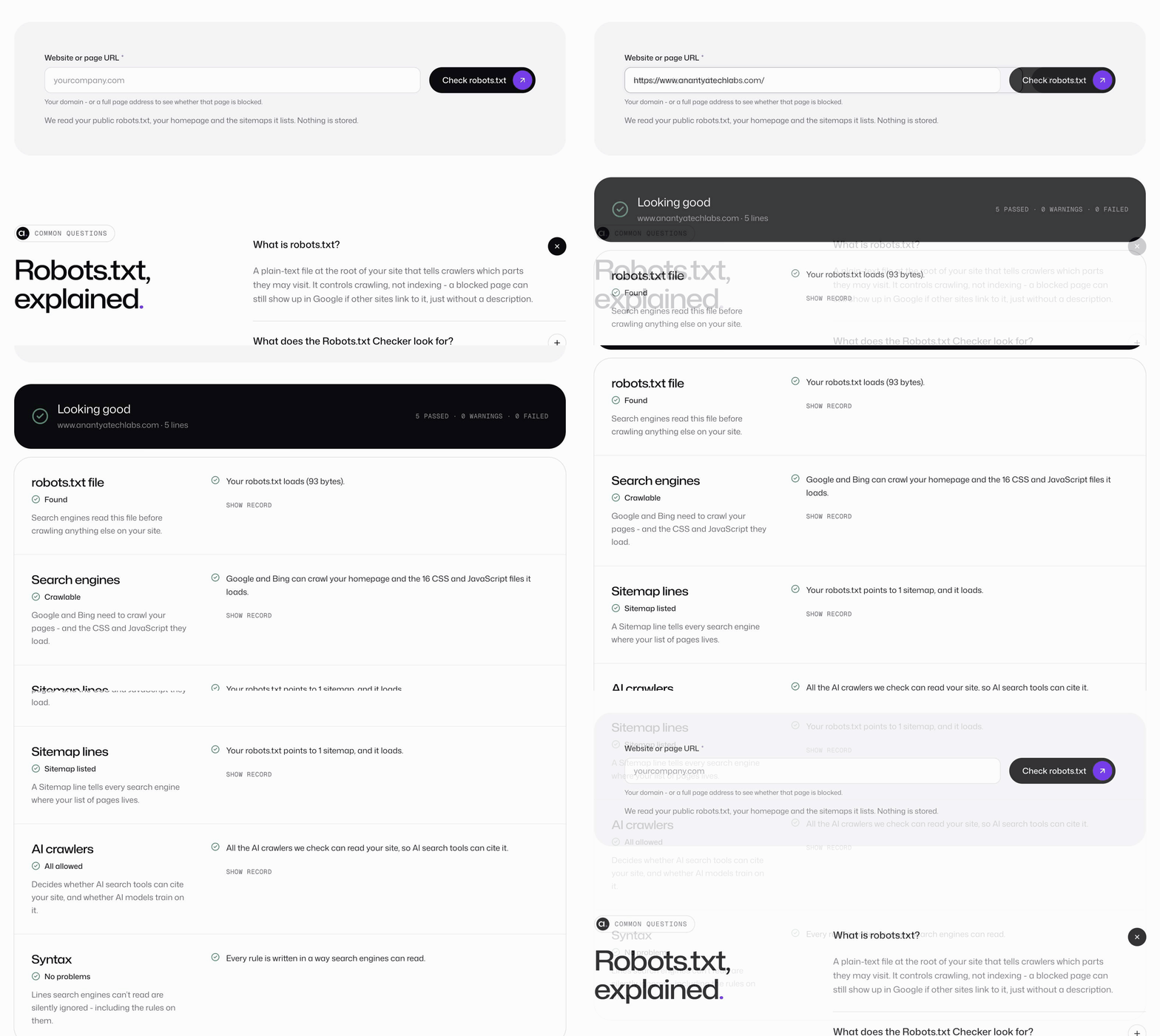
For a more convenient check, use Anantya TechLabs' free robots.txt checker. It helps you inspect your existing file and review important crawling instructions.
Here's what to look for.
1. Is the file accessible?
Your robots.txt file should normally be available at your website's root address. If it cannot be found or returns an unexpected response, investigate the issue before creating a replacement.
2. Are important pages blocked?
Review the rules to see whether your public service pages, blog posts or other important sections are accidentally restricted.
For example, a rule such as Disallow: / tells matching crawlers not to crawl any path on the website. If this rule is unintentionally active on a live website, it can cause significant crawling problems.
3. Is the sitemap referenced correctly?
Look for a Sitemap: directive containing the full URL of your XML sitemap. If the address is outdated or incorrect, update it after confirming the sitemap's actual location.
4. Are the restrictions intentional?
Not every restriction is a mistake. Some websites deliberately restrict crawling of certain areas, so understand what a rule does before removing it.
Starting with a robots.txt checker helps you identify potential issues without unnecessarily replacing a file that may already be working correctly.
Step 2: How to Find a Sitemap of a Website
Once you've checked robots.txt, the next step is to find your XML sitemap.
If you don't know where it is, try these methods before assuming your website doesn't have one.
Method 1: Check Common Sitemap Addresses
Open your browser and try these common locations, replacing example.com with your own domain:
https://example.com/sitemap.xmlhttps://example.com/sitemap_index.xml
Your website may use a different address, so a missing file at one location doesn't necessarily mean that a sitemap doesn't exist.
Method 2: Look Inside Robots.txt
Open your website's robots.txt file and search for a line similar to this:
Sitemap: https://example.com/sitemap.xmlThis directive tells you where the sitemap is located.
If you find more than one sitemap reference, your website may use separate files for blog posts, pages, products or other content.
Method 3: Use an XML Sitemap Checker
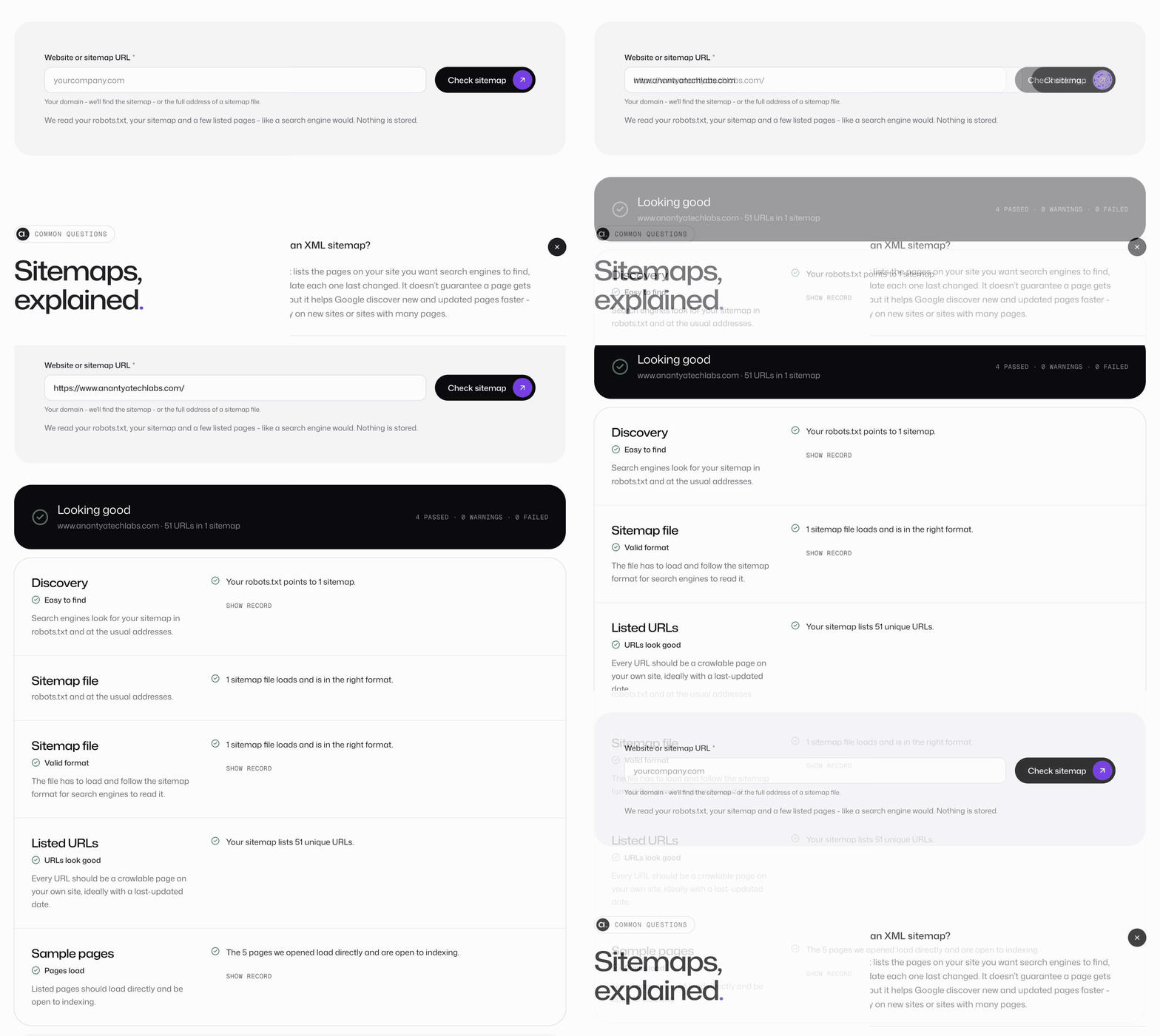
If you still can't find the file, use Anantya's free XML sitemap checker.
Enter your website address and let the tool check common sitemap locations and the sitemap reference in robots.txt.
Once the sitemap is found, review the results to see whether the file is accessible, follows the expected format and contains URLs that need attention.
Finding the sitemap is only the first step. You should also make sure it lists the right pages.
Step 3: Check Your Sitemap for Common Issues
Your sitemap may exist and still contain URLs that need attention. This is where an XML sitemap checker becomes useful.
When reviewing your sitemap, focus on the following areas.
Are the important pages included?
Your sitemap should list the preferred URLs of important, indexable pages, such as your main service pages and useful blog posts.
Are the listed URLs correct?
Look for outdated URLs, broken pages and URLs that redirect elsewhere.
If you've permanently moved a page, review the relevant 301 redirect and update your sitemap to reflect the preferred destination.
Can search engines crawl the listed pages?
A sitemap may contain a URL that robots.txt blocks. Review such cases to make sure your crawling rules and sitemap work together as intended.
Are the pages eligible for indexing?
Pages that you deliberately exclude from search results generally shouldn't be listed as preferred sitemap URLs. Check for a canonical URL pointing to another version of the page or a noindex instruction that prevents indexing.
Does the file follow the expected format?
An XML sitemap needs to follow the required structure. Formatting errors or invalid URLs can prevent search engines from processing it correctly.
A checker can help identify common issues, but its results may not cover every URL or every possible indexing problem.
Once you've checked your sitemap, you'll have a clearer idea of whether it needs updating or whether you can move on to reviewing robots.txt in more detail.
Step 4: How to Generate robots.txt Using a Free Tool
What if your robots.txt file is missing, or you've identified rules that need to change?
Instead of writing every instruction manually, you can use a robots.txt generator to prepare the file.
Anantya TechLabs offers a free robots.txt generator that helps you create a file based on your website's crawling requirements.
Here's how to use it.
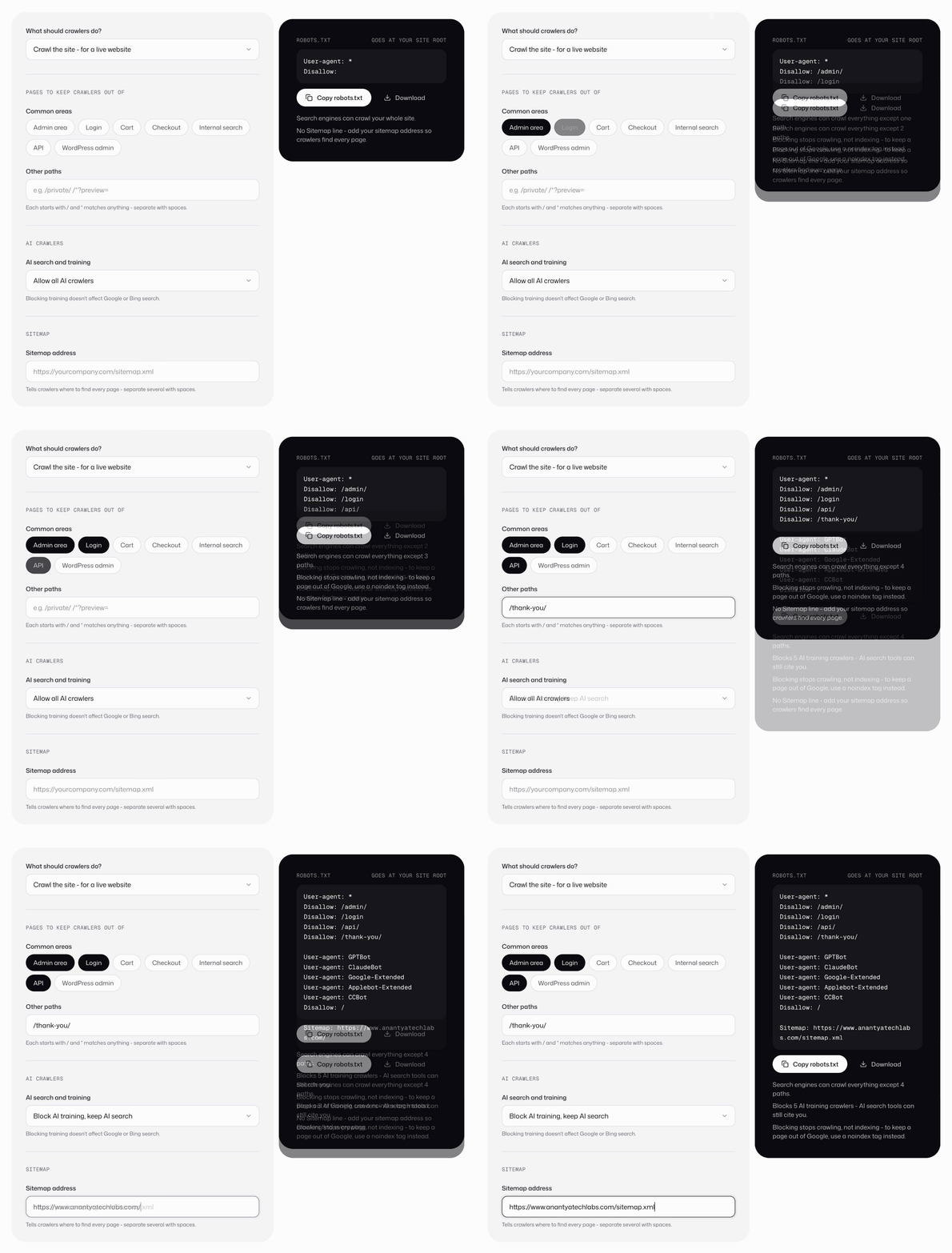
1. Choose the crawler permissions
Decide which parts of your website should be accessible to the crawlers covered by your rules.
For a typical public website, you generally want search engines to access important service pages, blog posts and other useful content.
2. Select the paths to restrict
You may want to restrict crawling of certain administrative areas or other paths that don't need to be crawled.
Don't block an entire folder without checking how your website uses it. Some paths that appear unimportant may contain resources needed to render a page properly.
3. Review AI crawler preferences
Depending on your requirements, you may also choose how certain AI crawlers are handled.
Different crawlers have different purposes. A crawler used for AI training may not serve the same purpose as one used to retrieve information for search. Review the available options individually rather than assuming every AI crawler should receive the same instructions.
4. Add your sitemap URL
Enter the complete sitemap address, including the HTTPS protocol.
For example:
Sitemap: https://example.com/sitemap.xmlReplace this example with your actual sitemap address. If your website uses a sitemap index or a different location, use the correct URL.
5. Generate and review the file
Generate the robots.txt content and review the resulting rules before publishing it.
The generator helps prepare the file, but it doesn't automatically install it on your website. You'll still need to publish it and verify that the live version is correct.
Step 5: Understand the Generated Robots.txt File
If you've never worked with robots.txt before, the generated output may look unfamiliar. Here's a simple example for a website that allows crawling under the stated rules and provides a sitemap location.
User-agent: *
Disallow:

Sitemap: https://example.com/sitemap.xml
Let's break it down.
User-agent: *applies the following rules to all crawlers that follow these instructions.Disallow:is empty, so it doesn't prohibit any paths under this rule.Sitemap:provides the full address of the XML sitemap.
This is a basic example, not a configuration that every website should copy without checking. Your website may need different rules depending on its structure and requirements.
Also, remember that robots.txt is not a way to password-protect content. If a page contains private information, use proper access controls rather than relying on crawling restrictions.
Step 6: Upload the File and Check It Again
Generating a robots.txt file isn't the final step. You need to make sure the correct version is available on your live website.
Your robots.txt file should normally be accessible at:
https://yourdomain.com/robots.txtThe process for updating it depends on your website platform.
- WordPress: Check whether your SEO plugin or hosting setup manages robots.txt before changing anything.
- Custom-built websites: Your developer may need to upload the file to the website's root directory.
- Hosted platforms: Platforms such as Shopify, Wix and Squarespace may manage robots.txt through their own settings or templates.
Before replacing an existing file, keep a copy of the original rules. This makes it easier to restore them if something goes wrong.
Once the changes are published, repeat your checks.
- Open the live robots.txt file or revisit the robots.txt checker.
- Confirm that important pages aren't accidentally blocked.
- Run the XML sitemap checker again.
- Confirm that the sitemap is accessible and contains the correct URLs.
- Review remaining warnings and investigate any issues that need attention.
If your sitemap is generated automatically by your content management system or SEO plugin, you usually don't need to create another one manually. Check that the existing sitemap updates as you publish or change content.
You can also use Google Search Console to monitor sitemap processing and inspect individual URLs. These checks provide additional information about how Google accesses your website, although they don't guarantee indexing.
Common Robots.txt and Sitemap Mistakes to Avoid
Even when you use a checker or generator, a few mistakes are worth watching out for.
Blocking important pages accidentally
A broad disallow rule can prevent search engines from crawling pages you want them to discover. Review your rules carefully before publishing them.
Using robots.txt as a noindex instruction
Robots.txt controls crawling, while a noindex directive tells search engines not to show a page in search results. They serve different purposes.
If a page shouldn't appear in search results, review the appropriate indexing controls instead of assuming that blocking it in robots.txt will remove it from the results.
Keeping outdated sitemap URLs
Remove URLs that no longer represent your preferred pages. Update the sitemap after important URL changes or website migrations.
Forgetting to check the published file
A generated file may be correct, but the live file could still be missing, outdated or overwritten by another system. Always verify the published version.
Expecting instant ranking improvements
Robots.txt and XML sitemaps support technical SEO, but neither guarantees indexing or better rankings. Your pages still need to be accessible, useful and eligible for search results.
Final Thoughts
Keeping your robots.txt file and XML sitemap in good shape doesn't have to be complicated. Start by checking your existing files, fix any issues you find, and verify the changes once they're live.
These small checks can help you maintain a website that's easier for search engines to crawl and navigate as you publish new content.
Looking for more ways to simplify your SEO tasks? Explore Anantya TechLabs' free SEO tools to check your website, identify potential issues and make everyday SEO tasks easier.
FAQs
What is the difference between robots.txt and an XML sitemap?
Robots.txt tells compliant crawlers which areas they may or may not crawl. An XML sitemap lists URLs you want search engines to discover. They serve different purposes and should be configured together.
How do I check robots.txt for free?
You can open yourdomain.com/robots.txt in your browser or use Anantya TechLabs' free robots.txt checker to inspect the file and review its rules.
How do I find the sitemap of a website?
Try common sitemap addresses such as /sitemap.xml and /sitemap_index.xml, or look for the Sitemap directive in robots.txt. You can also use the XML sitemap checker to look for the sitemap.
Can I generate a robots.txt file without coding?
Yes. A robots.txt generator helps you prepare the file by selecting crawling permissions, adding restrictions and specifying your sitemap URL. You still need to review the output and publish it correctly.
Does having a sitemap guarantee Google indexing?
No. A sitemap helps Google discover URLs, but Google decides which pages to crawl and index. Accessibility, content quality, canonical settings and other technical factors also matter.


