
Meta tags that get clicks start with the page: a title that names the subject and benefit, a description that tells searchers what they will find and Open Graph details that make shared links look complete. Anantya’s free meta tag generator turns that wording into previews and HTML, and an SEO checker confirms the live page shows it.
What does your website say before someone clicks on it?
A clear title that catches their attention? A useful description? Or a vague line that gives them little reason to visit?
You may have put hours into the page itself, but its first impression often happens in a search result or a shared link.
That is where your metadata matters.
Learning how to write meta tags starts with a simple question: what makes this page worth opening?
Let’s turn that answer into a clear title, a useful description and a link preview that reflects what visitors will find.
What Are Meta Tags?
Meta tags are pieces of information in a webpage’s HTML that describe the page or provide instructions to browsers, search engines and other platforms.
Some summarize its content. Others provide indexing instructions or information used in shared-link previews.
The HTML title is technically a separate element, although SEO tools commonly group it with metadata.
Your visible page heading and SEO title also serve different purposes. The heading introduces the content once someone arrives. The SEO title identifies the page in browser tabs and can influence its headline in search results.
They can use the same wording, but they do not have to.
Start With the Page, Then Write the Tags
Before opening a tool, decide what the page helps someone do.
A service page should explain the service. A tutorial should explain the task. A product page should identify the product and its relevant details.
Ask yourself:
- Who is this page for?
- What question does it answer?
- What will someone find after clicking?
For this article, the answer is straightforward: readers will learn to write metadata, generate the tags and implement them on a website.
That gives us a specific promise to build around.
Write a Title People Understand
Your title tag identifies the page and can influence the clickable headline shown in search results.
Start with the subject. Add the detail that makes the page useful. Include your brand when it adds context without crowding the wording.
Compare:
Vague: Meta Tags Explained
Clearer: How to Write Meta Tags That Get Clicks
The second version communicates the task and the intended benefit.
Use your main search phrase naturally. Avoid squeezing several keyword variations into one title.
Around 50-60 characters can be a practical drafting guide, but Google displays titles according to available space rather than a fixed character allowance. It may also choose different wording.
Clarity matters more than filling every available character.
Give Readers a Reason to Click
A meta description summarizes what visitors can expect. Google may display it beneath a search result, although it can select text from the page instead.
For this guide, we could use:
Learn how to write meta tags, preview your title and description and generate HTML with Anantya’s free tool. Follow a practical example.
This tells readers what they will learn and how the article helps.
Write a distinct summary for each important page. Avoid unsupported claims, repeated keywords and descriptions copied across unrelated content.
Around 140-160 characters is a useful drafting range, rather than a guaranteed display limit. Shorter descriptions can work when they explain the page clearly.
A meta description is not a direct Google ranking factor. Its purpose is to give searchers a useful summary when Google displays it.
Make Shared Links Look Complete
Someone might send your article through WhatsApp, share it on LinkedIn or post it on Facebook.
Open Graph tags provide information these platforms can use for the shared link’s title, description and image.
Choose an image that represents the page and remains readable in a small preview. Keep its message consistent with the article.
The image needs a publicly accessible URL. Upload your banner to your website’s media library, copy its direct image address and check that it opens without a login.
You can upload the image before publishing the blog. If the image is not ready, prepare the other details first and add it later.
Generate Your Tags With Anantya
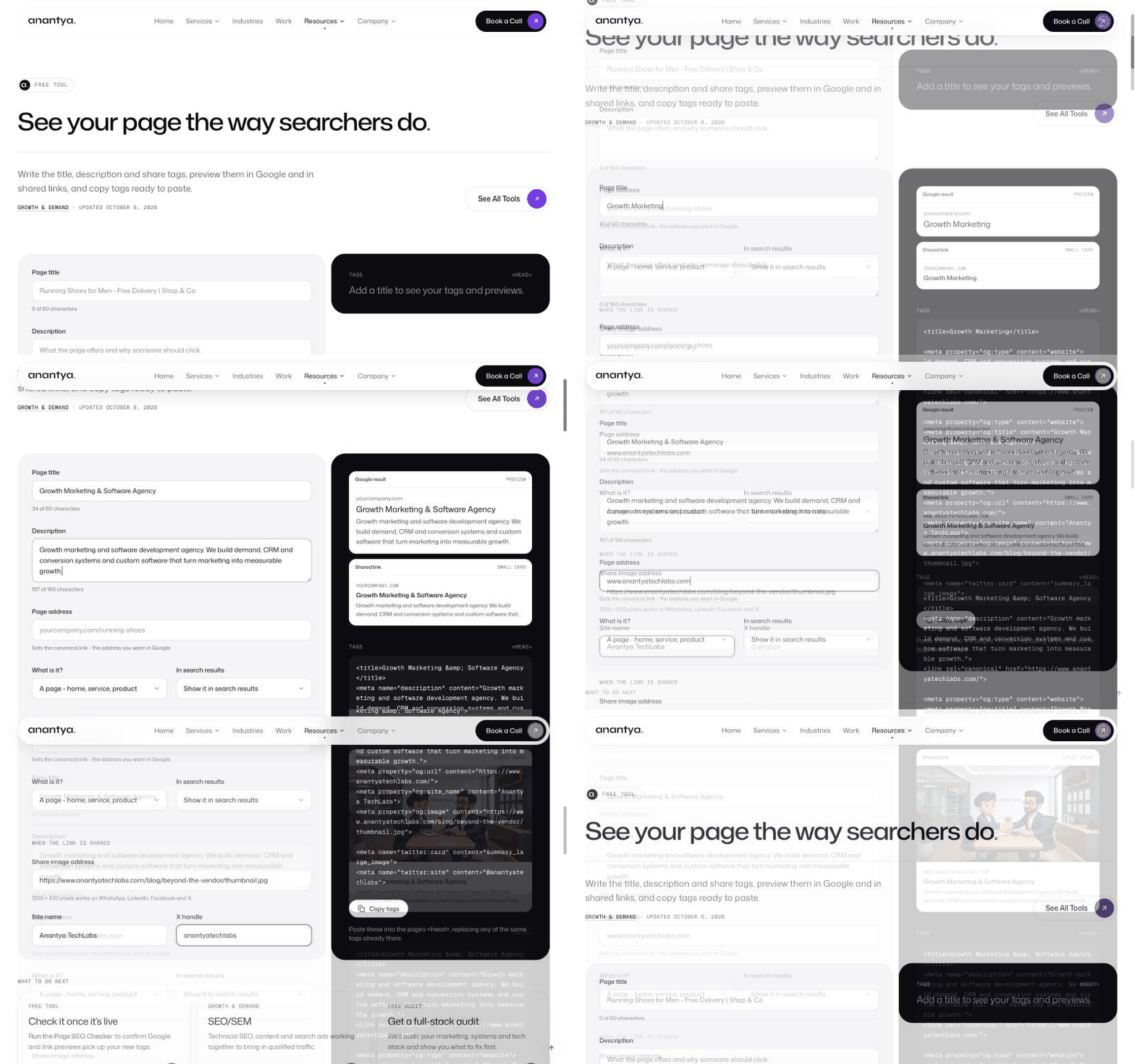
Preparing a new blog or updating an existing page? Use Anantya’s free meta tag generator to turn your chosen title, description and sharing details into HTML tags.
You supply the wording; the tool helps you preview it and prepare the code. It does not write the content or update your website automatically.
Here is how to prepare the metadata for a new blog, using this guide as an example.
1. Enter the page details
Start with the title, description and final page address:
- Page title: How to Write Meta Tags That Get Clicks
- Description: Learn how to write meta tags, preview your title and description and generate HTML with Anantya’s free tool. Follow a practical example.
- Page address: Enter the full URL where your blog will be published.
- Page type: Select “An article or blog post.”
You can prepare the tags before the article goes live. Use the planned URL from your CMS and update it if the address changes before publication.
The tool also uses this address to generate a canonical link, which tells search engines your preferred URL for the page.
2. Add sharing information
Upload your blog banner to your website’s media library, copy its public image URL and paste it into the share-image field. The image should open without requiring a login.
Add your site name and an X handle if relevant. For this example, the site name is Anantya TechLabs.
For a public blog intended to appear in search, select “Show it in search results.” This setting does not guarantee indexing or rankings.
3. Review the previews
Check how the title, description and sharing image appear together. Look for missing details, repeated wording or text that becomes unclear when shortened.
Make sure the preview accurately represents what readers will find in the article.
These previews are drafting aids. Search engines and social platforms determine the final display, so it may look different.
4. Copy the generated code
Review the tags, then copy the output for implementation on the blog page.
If your CMS already provides SEO and social-sharing fields, enter the corresponding details there; it will usually generate the HTML for you. Otherwise, share the code with your developer to add through the page’s metadata configuration or HTML <head>.
Generating the tags does not automatically update your website. Replace existing values where needed rather than adding duplicate tags.
Add the Tags and Check the Page
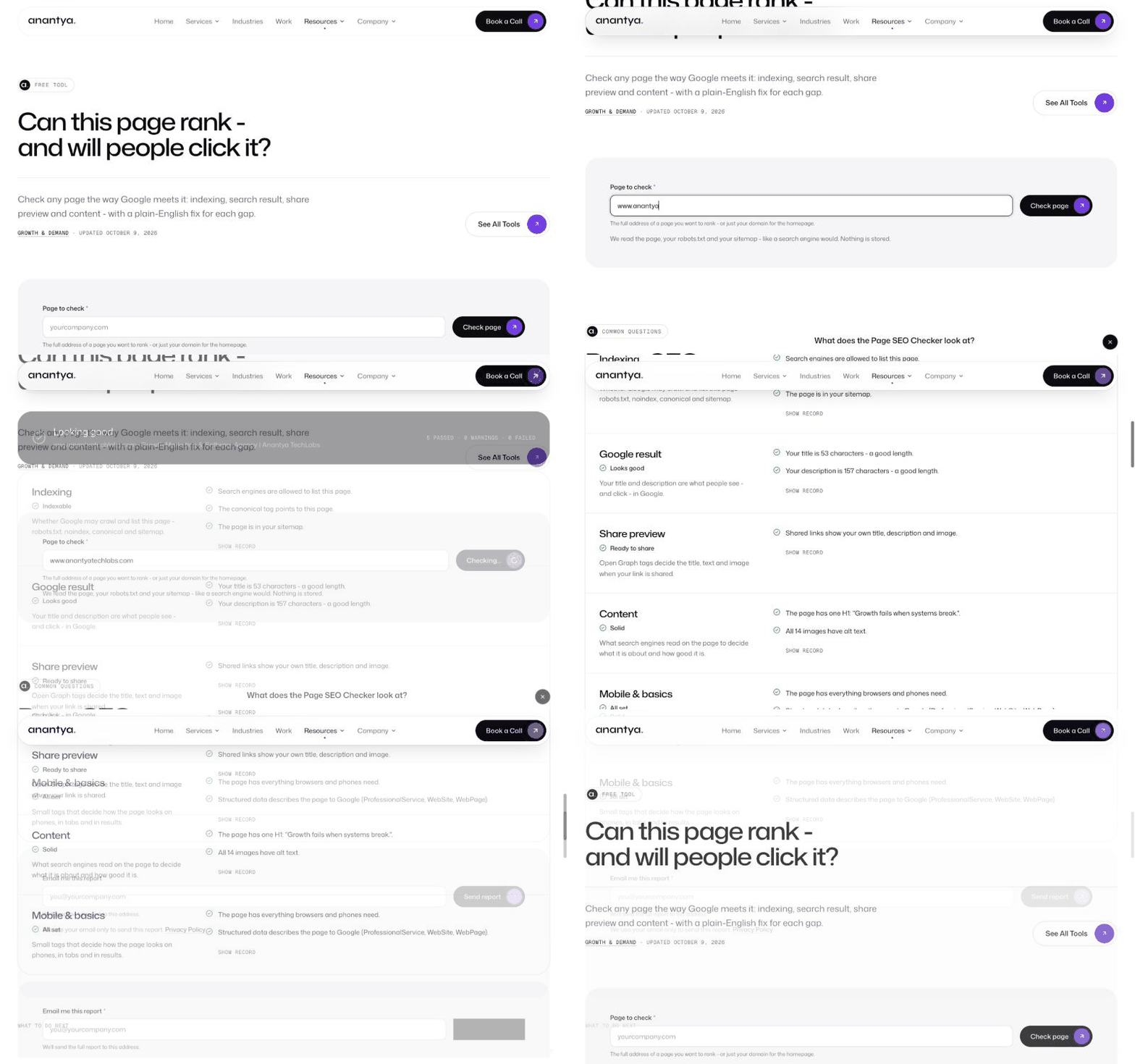
How you implement the metadata depends on your website.
If your CMS has SEO fields: Enter the title, description and sharing details into the appropriate settings. The CMS usually generates the HTML itself, so you may not need to paste the code.
For a custom website: Ask your developer to implement the metadata through the page’s configuration or HTML <head>.
Keep these tags specific to this article. Do not apply its title and description across the whole website.
Update existing tags rather than adding duplicates. After publishing, inspect the live page with an SEO checker to confirm the correct values appear.
Check a shared link too. Platforms may cache earlier previews, so changes might not appear immediately.
Make the First Impression Match the Page
Before publishing, compare the preview with the article. Does the wording promise something readers can actually find? Is the image relevant?
A clear title earns attention. An accurate description helps readers decide whether the page is useful. The content then needs to deliver on that promise.
FAQs
Do better meta tags guarantee higher rankings?
No. Metadata helps describe a page, but rankings depend on its content, relevance and other signals.
Can I generate tags before publishing a blog?
Yes. Use your planned URL and chosen metadata. Check that they match the final published page.
Do I need the tool if my CMS has SEO settings?
It can help you prepare and preview your details. Your CMS can then generate the code from its own fields.
Why does Google show different text?
Google selects titles and snippets using several signals, including page content and the search query. Your wording can influence the result without controlling it completely.

